Skip to content
  • Public key needed on teacher's devices

    Help & Troubleshooting
    1
    0 Votes
    1 Posts
    318 Views
    No one has replied
  • Guacamole and Veyon

    General Discussion
    4
    0 Votes
    4 Posts
    2k Views
    B
    @tobydox how would that even work? We have our guacamole server set up for RDP sessions, and for simplicity's sake we have every single laptop/VM set up with the exact same RDP credentials, how would we pass through the Guacamole login name or student name in guacamole as an environment variable?
  • Veyon 4.9.5

    Announcements
    1
    0 Votes
    1 Posts
    1k Views
    No one has replied
  • Remote View/Control fix window size/position?

    Help & Troubleshooting
    3
    0 Votes
    3 Posts
    676 Views
    B
    Another temporary workaround is to use the custom computer arrangement to create a "gap" in the middle of the 4 computers we have selected for that individual display TV, that way only 1 instance of Veyon Master needs to be open. This looks like its the more likely temporary solution we'll use. (and for the demonstration, we'll often have the students name on the computer number in notepad in the middle). [image: 1743704158234-d8699514-7bfc-4c51-887e-b7cb90a6b4ee-image.png]
  • Linux Mint

    Help & Troubleshooting
    1
    0 Votes
    1 Posts
    238 Views
    No one has replied
  • 0 Votes
    2 Posts
    428 Views
    root0R
    @FrEmaVeyon You can "Start Application" using %USERPROFILE% environment variable. For this You need to start it using cmd: cmd /c start "" "%USERPROFILE%\program.exe" This will work
  • Help importing locations & Computers

    Help & Troubleshooting
    3
    0 Votes
    3 Posts
    841 Views
    root0R
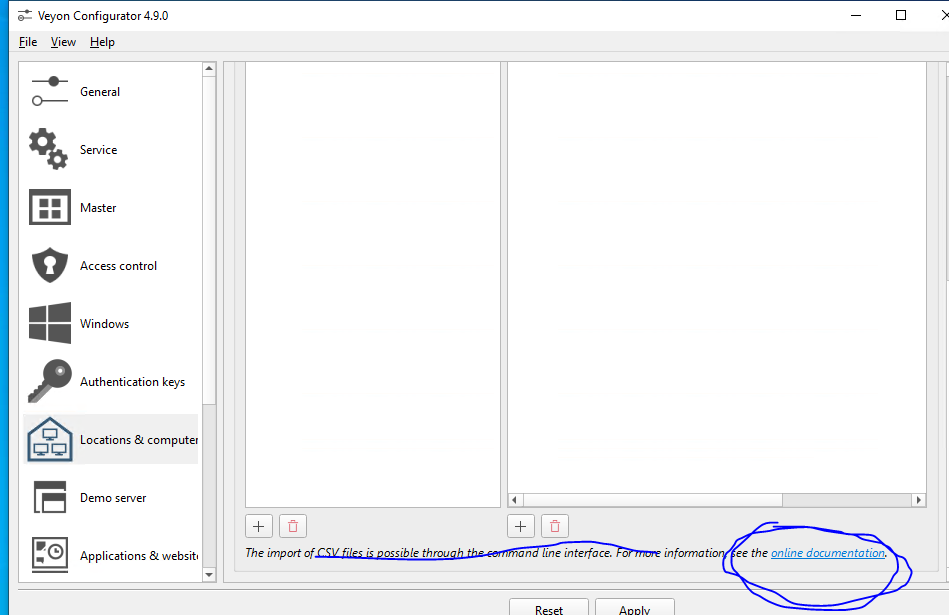
    Valid variables are %type%, %name%, %host%, %mac% and %location%. Various examples are given in the command help (veyon-cli networkobjects help import). from docs.. Construct each line as following - do not include header, do not separate with spaces Computer15;10.23.15.15;"Conference2" note the quotes 2. Go to "C:\Program Files\Veyon" open cmd in this folder command: veyon-cli networkobjects import "FULL PATH TO CSV FILE HERE" format "%name%;%host%;\"%location%\"" You should see [OK] on the command line Read the docs for better understanding
  • How to add Computers in batch?

    Help & Troubleshooting
    3
    1
    0 Votes
    3 Posts
    1k Views
    root0R
    issue 913 on github explains it - I cannot post any link Close configurator if it's open Create csv file where each line is like this: pc0;10.88.17.0;"class1" here pc0 will be visible in Master interface, 10.88.17.0 IP Address, but it can be hostname, last "class1" - note the quotes is the name of the location Once You have csv file go to "C:\Program Files\Veyon" open cmd there: command: veyon-cli networkobjects import "PATH TO YOUR CSV HERE" format "%name%;%host%;"%location%"" You will see [OK] on command line 4. Open Configurator and check
  • Demo on lock screen (no user is logged in)

    Help & Troubleshooting
    1
    0 Votes
    1 Posts
    190 Views
    No one has replied
  • Partners in Brazil

    General Discussion
    1
    0 Votes
    1 Posts
    779 Views
    No one has replied
  • Remote Classroom access

    Help & Troubleshooting
    3
    0 Votes
    3 Posts
    558 Views
    T
    No they don't have the same keys
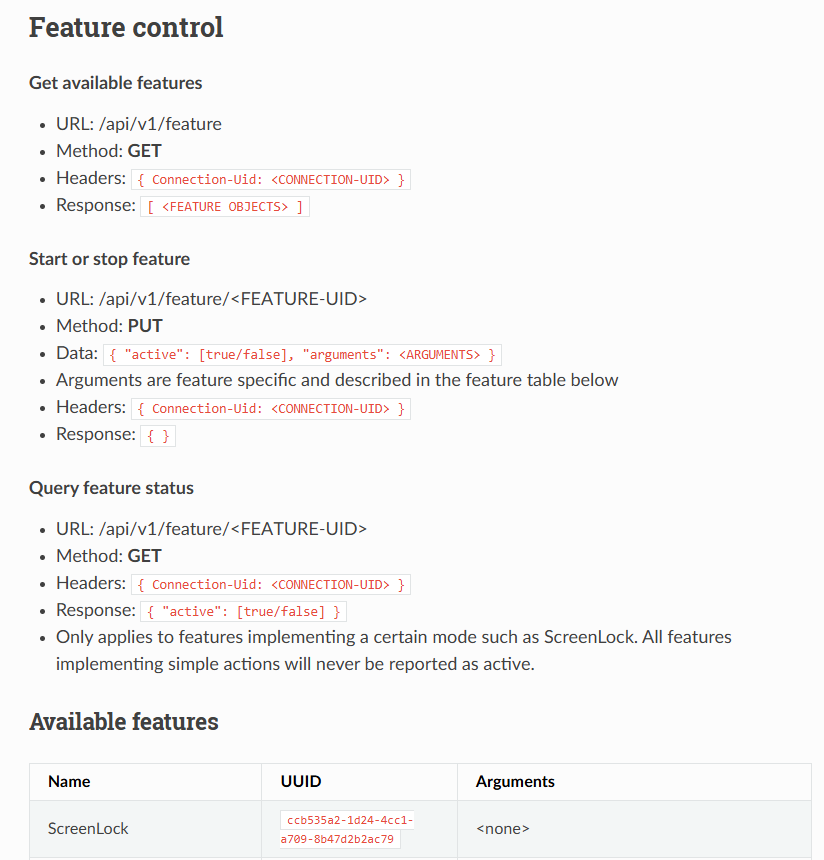
  • ScreenLock from WebAPI and CLI

    Help & Troubleshooting
    1
    1
    0 Votes
    1 Posts
    753 Views
    No one has replied
  • Why even use locations without LDAP?

    Help & Troubleshooting
    1
    0 Votes
    1 Posts
    284 Views
    No one has replied
  • URGENTE URGENTE GRAZIE impostazioni iniziali

    Help & Troubleshooting
    3
    0 Votes
    3 Posts
    635 Views
    N
    veyon con i pc collegati con wifi è un pò ballerino, per risolvere mettere ip statici e mac address in "posizioni e computers" in veyon configurator
  • 0 Votes
    1 Posts
    180 Views
    No one has replied
  • Veyon 4.9.4

    Announcements
    1
    0 Votes
    1 Posts
    932 Views
    No one has replied
  • Computer Locations

    Help & Troubleshooting
    2
    0 Votes
    2 Posts
    798 Views
    B
    Hello, In our organization, we fill in the attribute "location" in the SAMBA-AD attribute of a computer. Then in the Veyon Configurator, in the LDAP Basic/Advanced parameters page, for the identification of the location of a computer I choose "Location Attribute in computer objects" (or something similar as mine is set in french language) Also, in the LDAP Basic environnement paramaters page, for the field "Computer Location Attribute", I fill in "location". (not sure this last one is mandatory - I can' recall exactly as it is some time I have worked on these settings). All the settings are set at the installation of Veyon with a json file preconfigured passed as an option to the Veyon installer , so everything is set automatically provided the AD has been fulfilled.
  • Automatic research

    Help & Troubleshooting
    1
    0 Votes
    1 Posts
    135 Views
    No one has replied
  • Restrict changes to some config items

    General Discussion
    1
    0 Votes
    1 Posts
    770 Views
    No one has replied
  • Block Website

    Help & Troubleshooting
    5
    0 Votes
    5 Posts
    1k Views
    M
    Veyon itself does not have a built-in feature to block specific websites, but you can achieve this through other methods. One option is to configure your network’s firewall or router settings to block specific URLs while keeping general internet access available. Another approach is to use web filtering software like OpenDNS, K9 Web Protection, or your school's content filtering system to restrict access to certain sites. Additionally, you can set up browser extensions or parental controls to limit website access on student machines. While Veyon allows you to monitor and control student activity, you can also use its screen-locking or application-control features to minimize distractions during lessons. Hope this helps!