Skip to content

Help & Troubleshooting

You're facing difficulties with setting up Veyon? Ask away!

1.1k Topics 2.7k Posts
  • Cannot get Fedora Cinnamon workstations to connect.

    1
    0 Votes
    1 Posts
    129 Views
    No one has replied
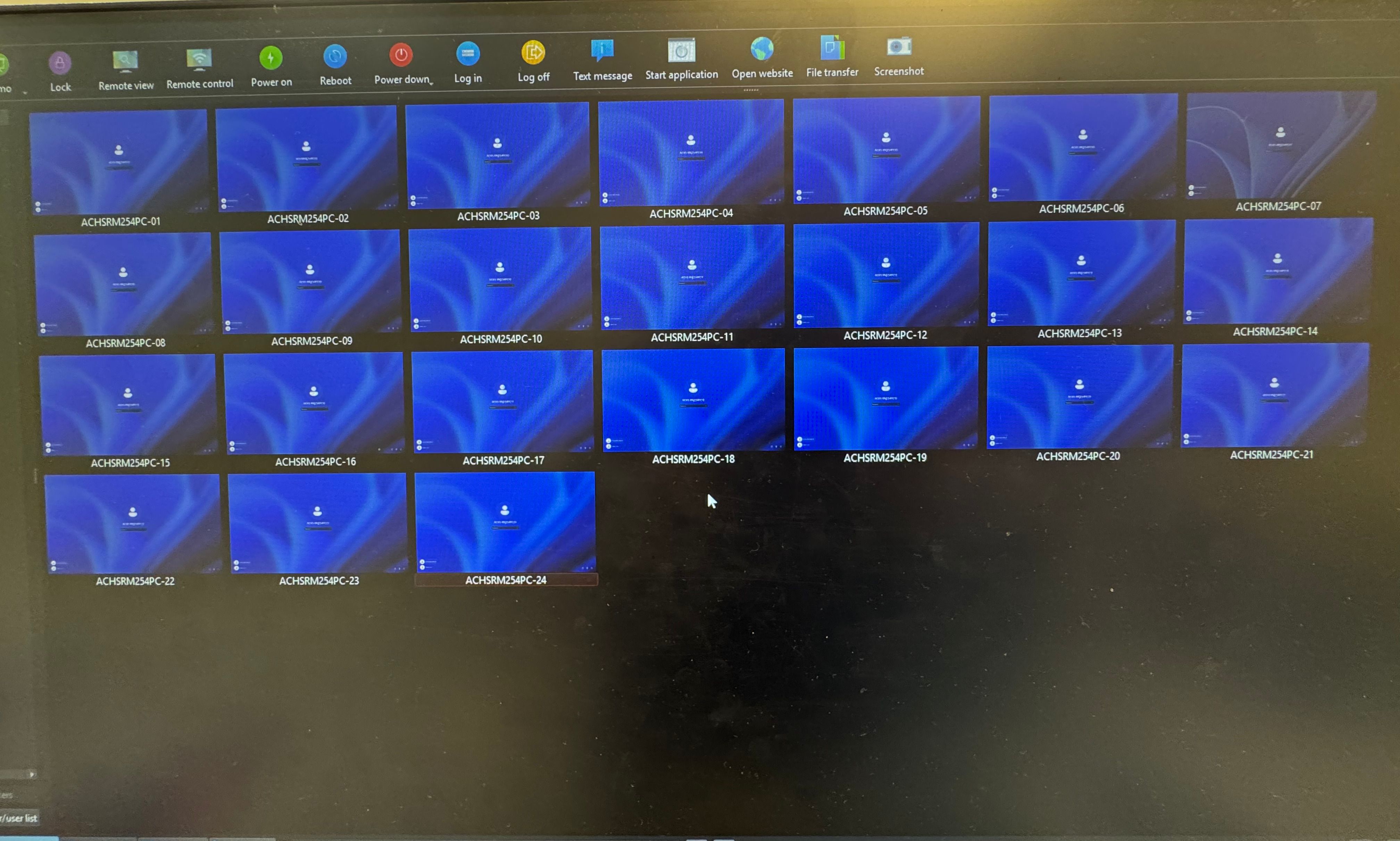
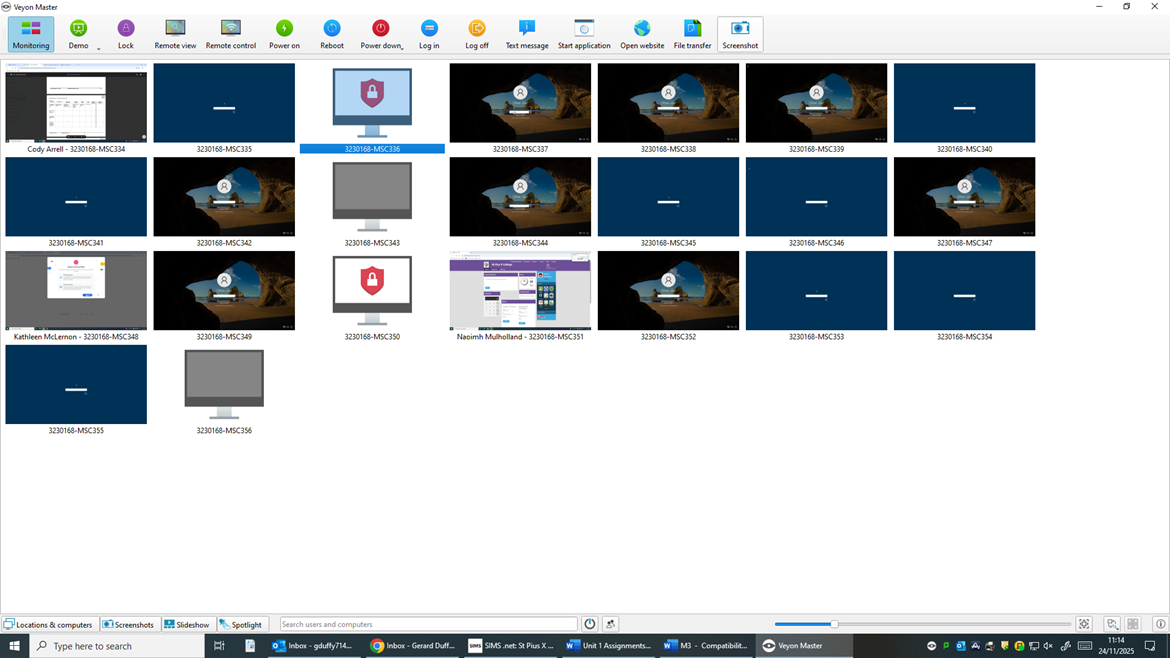
  • Some PCs not working

    2
    0 Votes
    2 Posts
    216 Views
    G
    I believe that's the "Authentication" icon. How are you authenticating to the machines? Perhaps a missing authentication key on the client?
  • Some PCs not working

    1
    0 Votes
    1 Posts
    135 Views
    No one has replied
  • Specify internet browser to open website

    1
    0 Votes
    1 Posts
    184 Views
    No one has replied
  • Teacher-side Multi-Display Issue

    1
    0 Votes
    1 Posts
    472 Views
    No one has replied
  • Mouse pointer Freezes

    2
    0 Votes
    2 Posts
    452 Views
    U
    Hi, I have the same problem with my laptop mouse. The USB mouse stops working. The touchpad works. How do I fix this?
  • wireless network: malfunction block internet

    2
    0 Votes
    2 Posts
    261 Views
    N
    SOLVED: solved the problem. need to disable the virtual network card created by Virtual Box.
  • /usr/bin/veyon-service filling ram

    2
    0 Votes
    2 Posts
    446 Views
    R
    welp it was x11vnc that was miss behaving because I am on wayland. Fix it by changing the vnc server.
  • Students turning off monitoring even without admin rights

    1
    0 Votes
    1 Posts
    1k Views
    No one has replied
  • installation errors with Windows version of 4.9.7

    3
    0 Votes
    3 Posts
    1k Views
    F
    [image: 1761139372960-capture-d-%C3%A9cran-2025-10-22-152130.png]
  • Veyon displays a special character when press "Alt+Gr"

    2
    0 Votes
    2 Posts
    512 Views
    A
    Hello, The same problem here. When I log in from “Remote Control,” when I enter my username and password containing @ and press the ALT+GR key, it enters that strange character. In my case, when connected remotely to the machine, nothing strange is displayed with the @, but when I try to enter it in a cmd, for example, I can see how it sends the same symbol with “?”. If you access the machines from Veyon itself with “Log in” instead of connecting to them remotely, it types and sends the @+ALT GR without any problems. I temporarily solve this by using ALT+64 in my case. For any other character, it would be necessary to find the corresponding number for that character in the ASCII table. Even so, as it affects passwords with special characters, it is tedious to work with this bug on a daily basis. If anyone finds a solution, that would be wonderful. Thanks in advance and best regards, [image: 1761051638988-error-veyon.png]
  • Veyon 4.9.7 configuration not writable

    1
    0 Votes
    1 Posts
    390 Views
    No one has replied
  • 0 Votes
    1 Posts
    284 Views
    No one has replied
  • Screen sharing feature from notebook

    1
    0 Votes
    1 Posts
    294 Views
    No one has replied
  • Screenshot capture name configuration

    1
    0 Votes
    1 Posts
    480 Views
    No one has replied
  • Problem with internet add-on when firewall is disabled

    1
    0 Votes
    1 Posts
    451 Views
    No one has replied
  • Trouble with Screen-Recording

    1
    0 Votes
    1 Posts
    369 Views
    No one has replied
  • Veyon Crash when use windows lock screen.

    4
    0 Votes
    4 Posts
    1k Views
    D
    It seems that I have an issue with a software : Rollback RX Pro. If i restart Veyon service, the connection is OK. If i restart Rollback service, Veyon is disconnecting. It seems that Rollback is closing Veyon waiting port 11100. But rollback seems to not use this port... I sent an email ton Rollback support ta have potential answers
  • 0 Votes
    3 Posts
    460 Views
    T
    consider using key authentication may solve your problem.
  • Windows Master connects to Windows clients, but Linux client fails

    8
    0 Votes
    8 Posts
    2k Views
    T
    Install Ubuntu 20.04.1 Name: "student" "01"-pc Password: 789qwe@ Update and Upgrade SSH sudo apt install openssh-server sudo service ssh status sudo ufw allow ssh sudo service ssh restart Enter the user as sudoers - /etc/sudoers Open the terminal Use the sudo nano command Modify the file using nano, on the last line add "student01-pc ALL=(ALL) NOPASSWD: ALL Save the nano with CTRL+O Veyon Download from GitHub https: //github. com /veyon/ veyon/ releases/ tag/v4.8.0 (It is recognized as a link. Please join the parts, otherwise it won't let me post.) (I use this version; it always works for me) I always install it using the Ubuntu program installer. Configure and Test the keys Extension Install gnome-shell-extension-prefs Disable desktop icons Disable unused software Install the package sudo apt-get install gnome-tweaks Open "Settings" -- First tab "General" --- Turn off "Animations" It works like this here: if I don't follow this order, I can't get Veyon to work. It doesn't allow access to the keychain, which is basically what it needs to locate the machine. In case of problems, I use ssh to stop the service with sudo systemctl stop Veyon and start it again with sudo systemctl start Veyon