Skip to content
  • Categories
  • Recent
  • Tags
  • Popular
  • Users
  • Groups
Skins
  • Light
  • Brite
  • Cerulean
  • Cosmo
  • Flatly
  • Journal
  • Litera
  • Lumen
  • Lux
  • Materia
  • Minty
  • Morph
  • Pulse
  • Sandstone
  • Simplex
  • Sketchy
  • Spacelab
  • United
  • Yeti
  • Zephyr
  • Dark
  • Cyborg
  • Darkly
  • Quartz
  • Slate
  • Solar
  • Superhero
  • Vapor

  • Default (No Skin)
  • No Skin
Collapse

Veyon Community Forum

  1. Home
  2. Help & Troubleshooting
  3. How to add Computers in batch?
How to add Computers in batch?

Scheduled Pinned Locked Moved Help & Troubleshooting
3 Posts 2 Posters 1.0k Views
  • Oldest to Newest
  • Newest to Oldest
  • Most Votes
Reply
  • Reply as topic
Log in to reply
This topic has been deleted. Only users with topic management privileges can see it.
  • C Offline
    C Offline
    casperyc
    wrote on last edited by
    #1

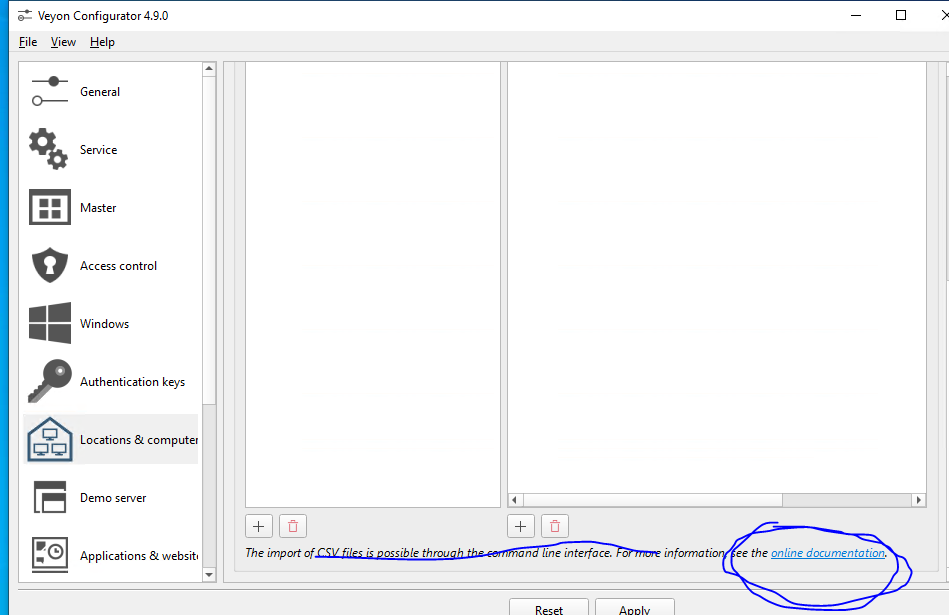
    58fa1624-5b2d-46ea-905a-a2f0742ffc08-image.png

    When I click on the online documentations, there is no response....

    So how do I add all computers in batch?
    For example, all begins with 192.168.10. XXX ???

    1 Reply Last reply
    0
    • C Offline
      C Offline
      casperyc
      wrote on last edited by
      #2

      anyone?

      This should be a straight forward feature for such application...
      But just without any further docs, it's weird....

      1 Reply Last reply
      0
      • root0R Offline
        root0R Offline
        root0
        wrote on last edited by
        #3

        issue 913 on github explains it - I cannot post any link

        1. Close configurator if it's open
        2. Create csv file where each line is like this:
          pc0;10.88.17.0;"class1"

        here pc0 will be visible in Master interface, 10.88.17.0 IP Address, but it can be hostname, last "class1" - note the quotes is the name of the location

        1. Once You have csv file go to "C:\Program Files\Veyon" open cmd there:
          command:
          veyon-cli networkobjects import "PATH TO YOUR CSV HERE" format "%name%;%host%;"%location%""

        You will see [OK] on command line
        4. Open Configurator and check

        1 Reply Last reply
        0

        Hello! It looks like you're interested in this conversation, but you don't have an account yet.

        Getting fed up of having to scroll through the same posts each visit? When you register for an account, you'll always come back to exactly where you were before, and choose to be notified of new replies (either via email, or push notification). You'll also be able to save bookmarks and upvote posts to show your appreciation to other community members.

        With your input, this post could be even better 💗

        Register Login
        Reply
        • Reply as topic
        Log in to reply
        • Oldest to Newest
        • Newest to Oldest
        • Most Votes


        Powered by NodeBB | Contributors
        • Login

        • Don't have an account? Register

        • Login or register to search.
        • First post
          Last post
        0
        • Categories
        • Recent
        • Tags
        • Popular
        • Users
        • Groups