Skip to content

Help & Troubleshooting

You're facing difficulties with setting up Veyon? Ask away!

1.1k Topics 2.7k Posts
  • Windows 11 client support

    5
    0 Votes
    5 Posts
    805 Views
    F
    Hi, do you guys know if v4.5.4.0 is compatible with Windows 11, please?
  • login feature on all machines

    1
    0 Votes
    1 Posts
    113 Views
    No one has replied
  • This topic is deleted!

    1
    0 Votes
    1 Posts
    1 Views
    No one has replied
  • Can I update Veyon clients remotely?

    4
    0 Votes
    4 Posts
    746 Views
    F
    Hi, I have a query, please. The Veyon Master and client machines are on v4.5.4. What is the easiest way to update them to the latest v4.9.5. The client machines are running Windows 10 currently and I am looking to update them to Windows 11. Will the current version be compatible?
  • This topic is deleted!

    1
    0 Votes
    1 Posts
    65 Views
    No one has replied
  • This topic is deleted!

    1
    0 Votes
    1 Posts
    73 Views
    No one has replied
  • Veyon Master ab 4.9.x zeigt sporadisch keine Clients an

    2
    0 Votes
    2 Posts
    317 Views
    V
    We have the same problem, sometimes the Veyon Service into clients PC doesn't start. To verify this, logon on unreachable client as administrator, run Veyon Configurator and try to start service manually. At moment we haven't found the cause.
  • 0 Votes
    1 Posts
    189 Views
    No one has replied
  • 0 Votes
    1 Posts
    352 Views
    No one has replied
  • 0 Votes
    1 Posts
    438 Views
    No one has replied
  • Question about setting up a student laptop

    1
    1 Votes
    1 Posts
    279 Views
    No one has replied
  • 0 Votes
    3 Posts
    526 Views
    D
    Hi, thank you for your answer, i submit an issue here : github _ veyon _ veyon / issues / 1033 (sorry i can't post a link)
  • 1 Veyon Master PC, 3 Private Keys and 3 Public Keys

    3
    0 Votes
    3 Posts
    389 Views
    G
    Hi! You can describe how you make this config? You set variable? And if yes, how to?
  • 0 Votes
    2 Posts
    272 Views
    V
    Hello, This is a Windows login configuration on non-Veyon PCs to modify. There should be no information from the previous user. Interactive login must be enabled : gpedit.msc Expand: Computer Configuration -> Windows Settings -> Security Settings -> Local Policies -> Security Options. On the right, locate and double-click the "Interactive logon: Do not display last user name" policy.
  • Public key needed on teacher's devices

    1
    0 Votes
    1 Posts
    178 Views
    No one has replied
  • Remote View/Control fix window size/position?

    3
    0 Votes
    3 Posts
    399 Views
    B
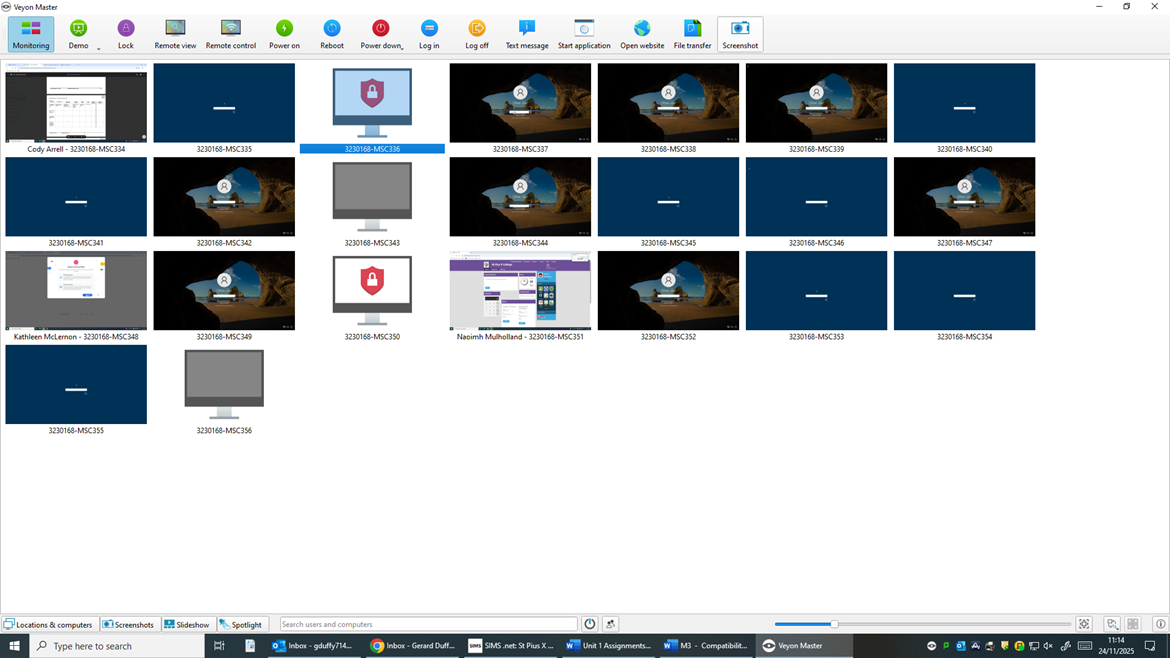
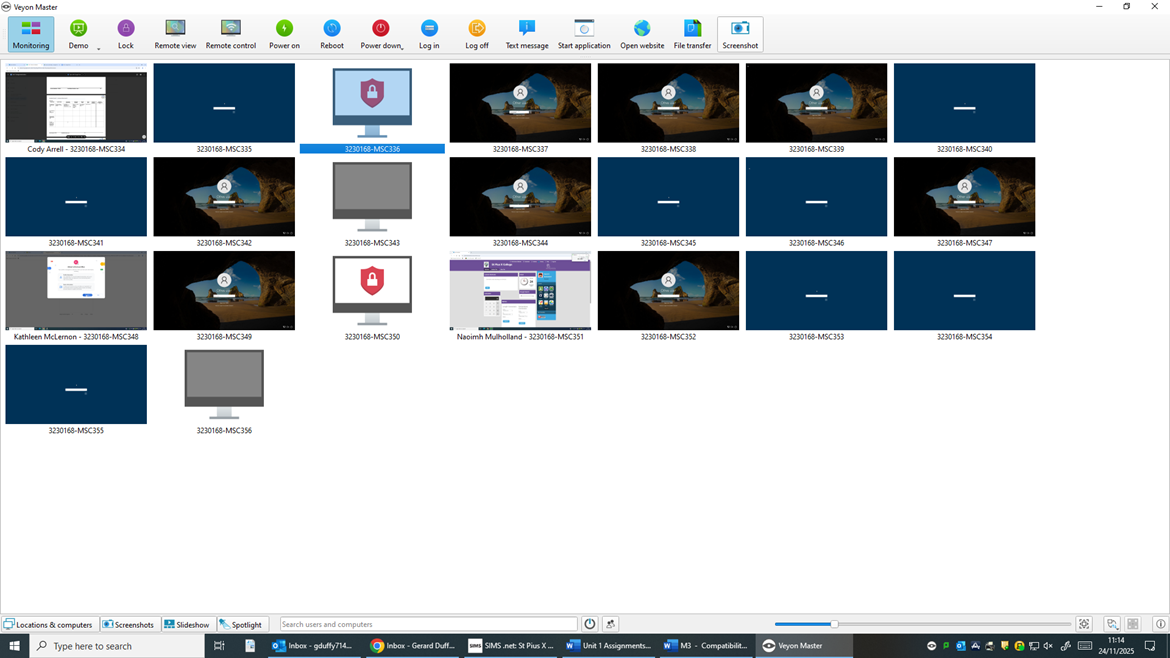
    Another temporary workaround is to use the custom computer arrangement to create a "gap" in the middle of the 4 computers we have selected for that individual display TV, that way only 1 instance of Veyon Master needs to be open. This looks like its the more likely temporary solution we'll use. (and for the demonstration, we'll often have the students name on the computer number in notepad in the middle). [image: 1743704158234-d8699514-7bfc-4c51-887e-b7cb90a6b4ee-image.png]
  • Linux Mint

    1
    0 Votes
    1 Posts
    173 Views
    No one has replied
  • Windows environment variebles in the path in "Run program"

    2
    0 Votes
    2 Posts
    268 Views
    root0R
    @FrEmaVeyon You can "Start Application" using %USERPROFILE% environment variable. For this You need to start it using cmd: cmd /c start "" "%USERPROFILE%\program.exe" This will work
  • Help importing locations & Computers

    3
    0 Votes
    3 Posts
    509 Views
    root0R
    Valid variables are %type%, %name%, %host%, %mac% and %location%. Various examples are given in the command help (veyon-cli networkobjects help import). from docs.. Construct each line as following - do not include header, do not separate with spaces Computer15;10.23.15.15;"Conference2" note the quotes 2. Go to "C:\Program Files\Veyon" open cmd in this folder command: veyon-cli networkobjects import "FULL PATH TO CSV FILE HERE" format "%name%;%host%;\"%location%\"" You should see [OK] on the command line Read the docs for better understanding
  • How to add Computers in batch?

    3
    0 Votes
    3 Posts
    604 Views
    root0R
    issue 913 on github explains it - I cannot post any link Close configurator if it's open Create csv file where each line is like this: pc0;10.88.17.0;"class1" here pc0 will be visible in Master interface, 10.88.17.0 IP Address, but it can be hostname, last "class1" - note the quotes is the name of the location Once You have csv file go to "C:\Program Files\Veyon" open cmd there: command: veyon-cli networkobjects import "PATH TO YOUR CSV HERE" format "%name%;%host%;"%location%"" You will see [OK] on command line 4. Open Configurator and check